
Change the wishlist iconUpdated 2 months ago
Change the icon used by Wysh
You can change the icon Wysh uses across your storefront from the Shopify theme editor. This setting is found in the Wysh Wishlist app embed, inside the Header/floating wishlist badge section.
INFO
The Wishlist icon setting controls the icon shown wherever the Wysh icon appears, including the header badge or floating badge depending on how your store is configured.
Open the Wishlist icon setting
1. Open your theme editor - In Shopify admin, go to Online Store. On your theme, click Edit Theme.
2. Open app embeds - In the theme editor, click the App embeds icon in the top-left corner.
3. Expand Wysh Wishlist - Find Wysh Wishlist and expand it to open its settings.
4. Open Header/floating wishlist badge - Scroll to the Header/floating wishlist badge section. Find the Wishlist icon dropdown.
5. Choose your icon - Select the icon style you want to use: Heart, Star, Bookmark, Gift, or Custom.
6. Save your changes - Click Save in the theme editor. The selected icon will then be used wherever the Wysh icon appears on your storefront.

Available icon options
The Wishlist icon dropdown includes five options:
Heart
Star
Bookmark
Gift
Custom
If you choose Heart, Star, Bookmark, or Gift, Wysh updates the icon automatically everywhere that icon is displayed in your theme.
Use a custom icon
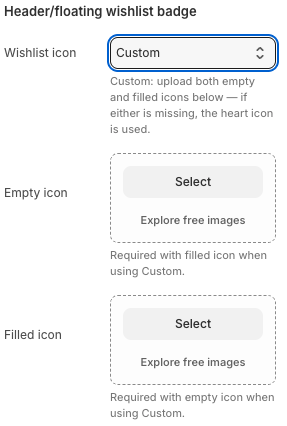
If you want to use your own design instead of one of the built-in icon styles, choose Custom in the Wishlist icon dropdown.
When Custom is selected, two extra upload fields appear:
Empty icon
Filled icon
Upload both versions, then save the theme editor. Once saved, your custom icon will appear wherever the Wysh icon is used on your storefront.
WARNING
To use Custom, upload both an Empty icon and a Filled icon. If one is missing, Wysh falls back to the default heart icon.
When this change applies
The icon choice applies at the theme level in the Shopify theme editor. After saving, the new icon is used wherever the Wysh icon appears in that theme.
What to check after saving
The new icon appears in the expected places on your storefront.
Your custom uploads, if used, display correctly in both empty and filled states.
The icon is clear and readable on both desktop and mobile.
TIP
If you are using a custom icon, use simple artwork with a transparent background so it fits neatly across different parts of your theme.