
Enable dark mode on wishlist pagesUpdated a day ago
Use dark mode on wishlist pages
If your storefront uses a dark or black background, you can enable a dark mode setting for Wysh wishlist pages so the page is easier to read and the buttons better match your design.
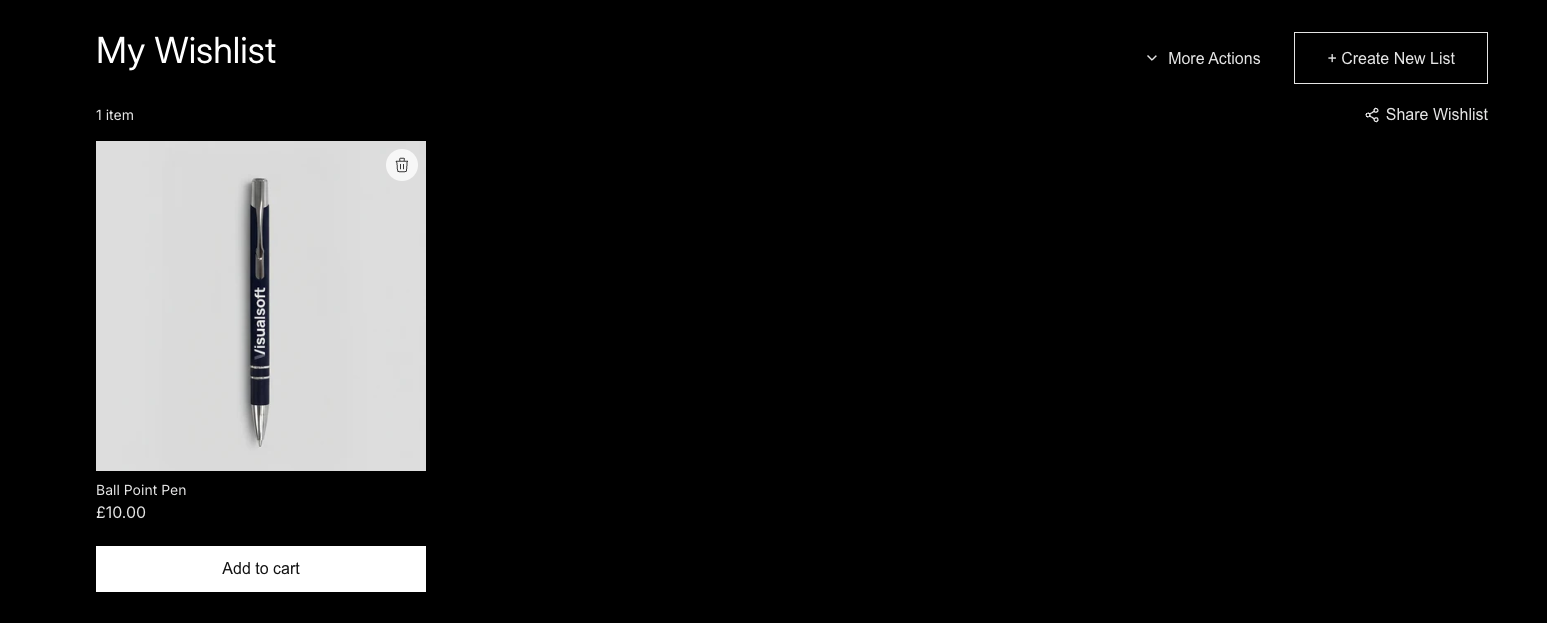
When Use Dark Mode for Wysh is enabled, Wysh applies light styling on wishlist pages. This can help invert text to white and switch buttons from dark backgrounds with light text to lighter backgrounds with darker text.
Info:
This setting is useful when your storefront design makes the default wishlist page styling too dark to read clearly.
Where to find the setting
You can find this option in Shopify under Online Store > App Embeds > Wishlist Pages, using the toggle labelled Use Dark Mode for Wysh.
Note:
The screenshot below shows a wishlist page using dark mode styling, with white text on a dark background and inverted button styling.
Turn on Use Dark Mode for Wysh
1. Open your Shopify theme editor:
In Shopify admin, go to Online Store. Open the theme editor for the theme you want to update.
2. Open App Embeds:
In the theme editor, open App embeds.
3. Open the Wysh settings:
Find Wysh in the App embeds panel and expand its settings.
4. Go to the Wishlist Pages:
Scroll to the Wishlist pages section. Find the toggle called Use Dark Mode for Wysh.
5. Enable dark mode:
Turn on Use Dark Mode for Wysh. This applies light or dark Wysh styling on theme pages and on wishlist pages at /a/wysh.
6. Preview and save:
Preview the wishlist page styling in the theme editor, then click Save when you are happy with the result.
What changes when dark mode is enabled
Text on the wishlist page can switch from dark text to lighter text, which is easier to read on dark backgrounds.
Buttons such as Add to cart and Create New List can appear inverted so they stand out better on black or dark page backgrounds.
The overall wishlist page becomes more consistent with dark storefront themes.
Good times to use this setting
Your store uses a black, charcoal, or dark-coloured background.
Wishlist page text is hard to read against your theme background.
Your buttons blend into the page because they use dark backgrounds.
You want the My Wishlist page to better match a dark storefront style.
Tip:
If your text looks correct but your buttons still need more control, use Override action button colours in the same Wishlist pages section to style the Add to cart and Create New List buttons separately.
If your changes do not appear:
The wishlist page still looks the same
Make sure you enabled Use Dark Mode for Wysh in the correct theme under App embeds, then click Save.
My button styling is not updating
If your store was previously styled through the Wysh setup wizard, theme editor settings may not take effect until Override Wizard Settings is enabled.
This is especially important if you are also changing button colours in the Wishlist pages section.
I need more button control on dark backgrounds
Enable Override action button colours to customise the primary and secondary button colours used on wishlist pages.
This lets you control button background, text, border, and hover states for actions such as Add to cart and Create New List.
Quick checklist
Go to Online Store
Open your theme editor
Open App embeds
Expand Wysh
Open Wishlist pages
Turn on Use Dark Mode for Wysh
Preview the wishlist page
Click Save