
How can I hide the add to cart button on the wishlist page?Updated 5 hours ago
Hide the Add to cart button on the wishlist page
If you want to remove the Add to cart button from the wishlist page at /a/wysh, you can do this from your Shopify theme editor.
NOTE
This setting is disabled by default. Turn it on only if you want to hide the button from the wishlist page.
1. Open your theme editor - In Shopify admin, go to Sales Channels > Online Store, then click Edit Theme.
2. Open the app embeds panel - In the theme editor, open the App embeds panel.
3. Expand Wysh Wishlist - Find Wysh Wishlist in the list of app embeds and expand it to view its settings.
4. Enable the setting - Scroll until you find Disable add to cart from wishlist page, then switch it on. When enabled, Wysh hides the Add to cart button on the wishlist page at /a/wysh.
5. Save your changes - Click Save in the theme editor to apply the change to your live theme.
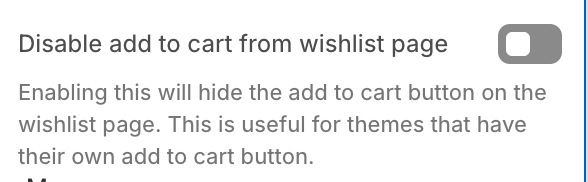
What this setting does
Enabling Disable add to cart from wishlist page hides the button shown on the Wysh wishlist page.
TIP
This is useful if your Shopify theme already provides its own add to cart option and you want to avoid showing two cart buttons on the same page.
FAQ
Q. Will this remove the button everywhere in my store?
A. No. This setting only affects the Wysh wishlist page at /a/wysh.
Q. Why can't I see the setting?
A. Make sure you opened App embeds in the Shopify theme editor and expanded Wysh Wishlist. The setting appears inside that embed's options.
Q. Do I need to save the theme after changing it?
A. Yes. Click Save in the theme editor, otherwise the change will not be applied.