
Manual theme icon placementUpdated 8 days ago
When manual placement is needed
If your store is using an unknown or Partially Supported theme, Wysh may ask you to place its icons manually in your theme code. This is done during the Theme Configuration step in the Setup Guide.
Manual placement lets you choose exactly where the Wysh wishlist icon appears in your theme header, collection product cards, and product pages.
WARNING
Before editing theme code, make sure you are working on the correct theme in Shopify. If possible, duplicate your theme first so you have a backup.
Before you start
Open Wysh in your Shopify admin and review the Setup Guide.
Confirm whether your theme is marked Partial Support.
In Shopify, go to Online Store > Themes.
On your current theme, open the actions menu and select Edit code.
INFO
Some common placement examples are available in the How It Works page inside the Wysh app for reference.
Header icon
Add this placeholder if you want customers to open My Wishlist from your store header.
- Open your theme code
In Shopify admin, go to Online Store > Themes. Open the actions menu for your theme and select Edit code. - Find your header file
In the Sections folder, look forheader.liquidor a similarly named header file. - Paste the header placeholder
Copy and paste this code where you want the wishlist icon to appear in the header:
<div data-wysh-header-badge-placeholder><svg xmlns="http://www.w3.org/2000/svg" width="22" height="20" fill="none" viewBox="0 0 22 20" class="icon not-added wysh-icon-heart" stroke-width="1"><path stroke="currentColor" stroke-linecap="round" stroke-linejoin="round" d="M19.338 10.65 11.01 19 2.68 10.65a5.626 5.626 0 0 1-1.27-1.911 5.682 5.682 0 0 1 .117-4.507 5.615 5.615 0 0 1 1.368-1.84 5.535 5.535 0 0 1 1.983-1.13 5.489 5.489 0 0 1 4.429.478 5.576 5.576 0 0 1 1.702 1.528 5.574 5.574 0 0 1 1.705-1.515 5.506 5.506 0 0 1 4.417-.463c.729.234 1.401.619 1.976 1.128a5.616 5.616 0 0 1 1.364 1.835 5.679 5.679 0 0 1-1.133 6.403"/></svg></div> - Save your changes
Click Save to apply the changes.
TIP
Place the header placeholder near your account, cart, or other header action icons if you want the wishlist entry point to feel natural for customers.
Collection page icon
Add this placeholder if you want the wishlist icon to appear on collection grids or product cards, so customers can save items without opening the full product page.
- Open your theme code
In Shopify admin, go to Online Store > Themes, open the actions menu for your theme, and select Edit code. - Find the product card template
Look for the file that controls product cards. Common locations include:
snippets/product-card.liquid
snippets/card-product.liquid
sections/main-collection-product-grid. liquid - Paste the collection placeholder
Copy and paste this code into the product card template where you want the wishlist icon to appear:
<div data-wysh-collection-button-placeholder><svg xmlns="http://www.w3.org/2000/svg" width="22" height="20" fill="none" viewBox="0 0 22 20" class="icon not-added wysh-icon-heart" stroke-width="1"><path stroke="currentColor" stroke-linecap="round" stroke-linejoin="round" d="M19.338 10.65 11.01 19 2.68 10.65a5.626 5.626 0 0 1-1.27-1.911 5.682 5.682 0 0 1 .117-4.507 5.615 5.615 0 0 1 1.368-1.84 5.535 5.535 0 0 1 1.983-1.13 5.489 5.489 0 0 1 4.429.478 5.576 5.576 0 0 1 1.702 1.528 5.574 5.574 0 0 1 1.705-1.515 5.506 5.506 0 0 1 4.417-.463c.729.234 1.401.619 1.976 1.128a5.616 5.616 0 0 1 1.364 1.835 5.679 5.679 0 0 1-1.133 6.403"/></svg></div> - Save your changes
Click Save to apply the changes.
Product page icon
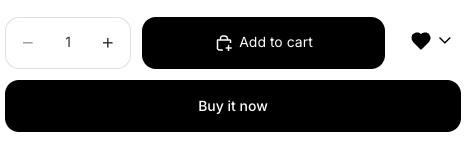
Add this placeholder if you want the wishlist icon to appear beside the main product purchase actions, such as Add to cart and Buy it now.
- Open your theme code
In Shopify admin, go to Online Store > Themes, open the actions menu for your theme, and select Edit code. - Find the product template
Look for the file that controls the product form or product layout. Common locations include:
sections/main-product.liquid
snippets/product-form.liquid
templates/product.liquid - Paste the product placeholder
Copy and paste this code where you want the wishlist icon to appear in the product template:
<div data-wysh-product-button-placeholder><svg xmlns="http://www.w3.org/2000/svg" width="22" height="20" fill="none" viewBox="0 0 22 20" class="icon not-added wysh-icon-heart" stroke-width="1"><path stroke="currentColor" stroke-linecap="round" stroke-linejoin="round" d="M19.338 10.65 11.01 19 2.68 10.65a5.626 5.626 0 0 1-1.27-1.911 5.682 5.682 0 0 1 .117-4.507 5.615 5.615 0 0 1 1.368-1.84 5.535 5.535 0 0 1 1.983-1.13 5.489 5.489 0 0 1 4.429.478 5.576 5.576 0 0 1 1.702 1.528 5.574 5.574 0 0 1 1.705-1.515 5.506 5.506 0 0 1 4.417-.463c.729.234 1.401.619 1.976 1.128a5.616 5.616 0 0 1 1.364 1.835 5.679 5.679 0 0 1-1.133 6.403"/></svg></div> - Save your changes
Click Save to apply the changes.
Check that placement worked
Open your storefront and confirm the header icon appears where you added it.
Open a collection page and check that the wishlist icon appears on product cards.
Open a product page and confirm the icon appears beside Add to cart and Buy it now.
Test saving an item to make sure it is added to My Wishlist.
Troubleshooting
Q. I added the code, but the icon does not appear:
A. First, make sure the code was pasted into the correct file and that you clicked Save. Then confirm that the storefront embedded app is enabled and that you completed the Theme Configuration step in Wysh.
Q. The icon appears in the wrong place:
A. Move the placeholder higher or lower in the same theme file until it appears where you want it. The exact position depends on your theme layout.
Q. I have multiple possible theme files:
A. Many Shopify themes split product cards and product forms across several snippets. If the first file does not control the visible area you want, check the other common locations listed in this guide.
Q. Where can I see examples before editing my theme?
A. Open the How It Works page inside Wysh to review common placement examples before updating your theme code.