
Show Date Added on Wishlist PageUpdated 6 hours ago
Show Date Added on Wishlist Page
Enabling this feature allows you to display exactly when a customer added an item to their wishlist on your store's /a/wysh page.
Key Benefits:
Provides helpful context for customers returning to track and manage their saved items over time.
Creates a subtle sense of urgency for items that have been sitting on a wishlist for a long period.
Offers flexible display formats, allowing you to match the date style to your brand's voice.
How to Set Up the Date Added Feature
Prerequisites:
Before you begin, you must disable the Override Wizard Settings option. This is located under the App embeds section of your Shopify Theme Editor.
INFO
You can change the setup wizard settings without disabling the Override Wizard Settings option first, but your changes will be ignored on your live storefront until that setting is disabled.
Step-by-Step Instructions:
Open the Wysh app from your Shopify Admin.
Navigate to Settings.
Scroll to the Wishlist page section of the setup wizard.
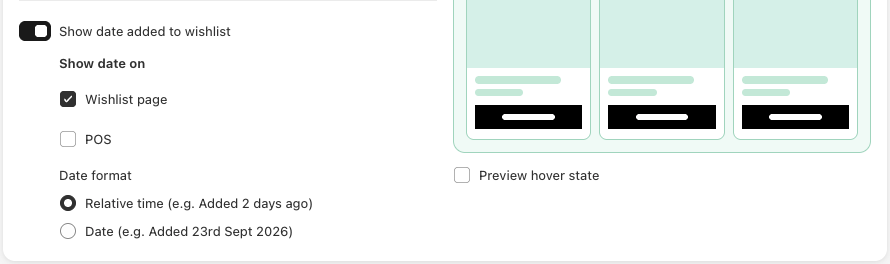
Enable the Show date added to wishlist option.
Under Show date on, select where you want this to appear: Wishlist page, POS, or both.
Under date format, select your preferred display style:
Relative time (e.g., "added 2 days ago")
Date (e.g., "Added 6th October 2026")
Click Save to apply your changes.
Verification / Next Steps
To confirm your setup is correct, visit your storefront and navigate to your wishlist page at /a/wysh. You should now see the date added displayed directly beneath the title and price on each product card.